

Not every church website is the same. A homepage needs something visual and immediate. A dedicated events page might need the full picture of the month at a glance. A sidebar or secondary page might work best with a clean, compact rundown of what’s coming up. The right way to display your events depends on where they’re going and what you want visitors to do with them.
PCO Embed gives you three distinct event display types — Gallery, Monthly Calendar, and List — each pulling live from your Planning Center calendar, each suited to a different context on your site. Here’s what each one does and when to use it.
The Gallery and List event types can be filtered by multiple options — number of events, featured only, signups only, and by a specific tag you have assigned to the event. This enables you to create beautiful event embeds for very specific use cases on your website. For example, you could create an embed that showed all upcoming evangelism events that people can signup for, or the top 3 featured events for your home page.
Gallery View
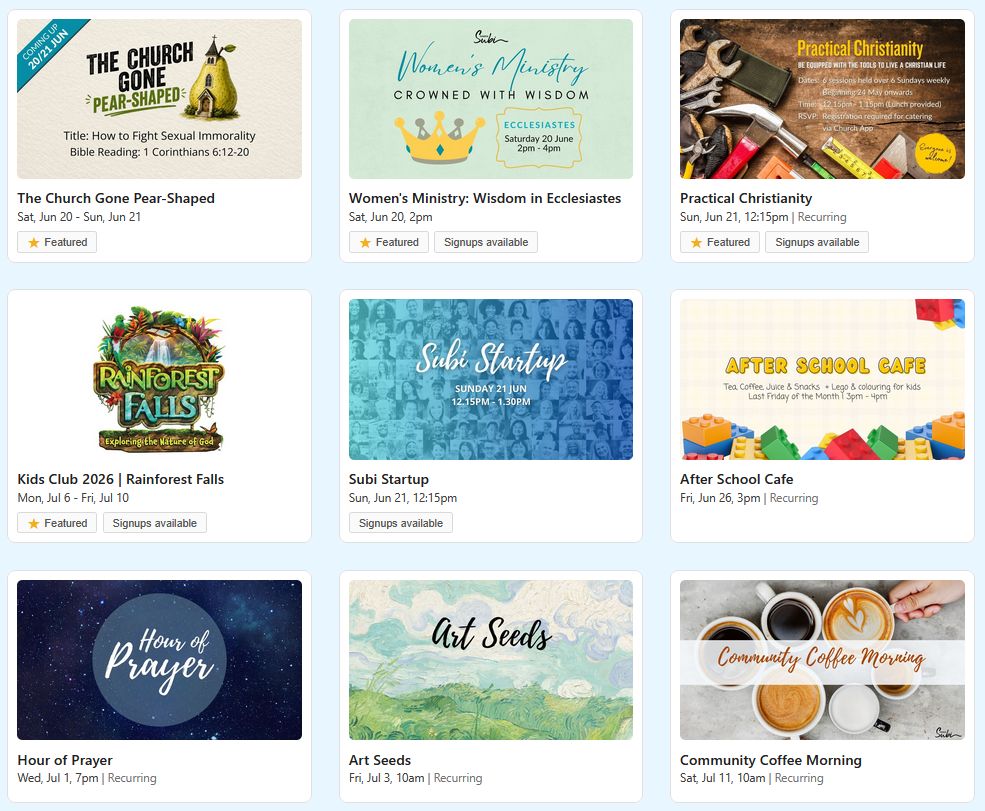
The Gallery view displays your upcoming events as a visual grid of cards — each event presented with its image, title, date, and key details. It’s the most visual of the three options, designed to catch the eye and invite browsing.
This is the view that many churches uses on their events page. The events gallery page shows upcoming church events pulled live from Planning Center Events. Visitors can browse what’s coming up at a glance — from regular ministry events to special gatherings and community outreach activities.
What it’s best for:
- A dedicated Events or What’s On page where you want to showcase the life of your church visually
- Churches with strong event imagery and varied programming — the Gallery shines when events have distinct artwork or photography
- Homepages where you want a “What’s Coming Up” section that looks polished without a lot of effort
What to keep in mind:
The Gallery view works best when your events in Planning Center have images attached. Events without images will use a default placeholder, so if your team consistently uploads event artwork to PCO, this view will look its best. Because it’s image-led, it also works better with wider page layouts than narrow sidebars.
Monthly Calendar View
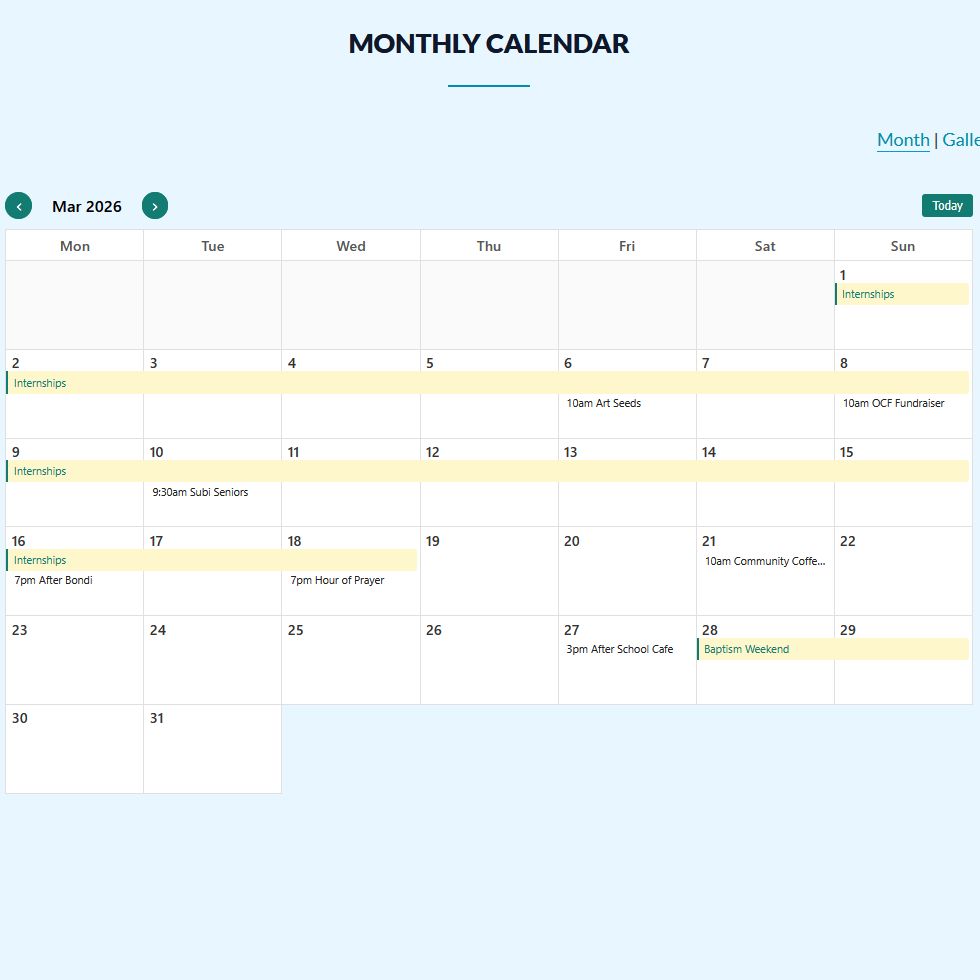
The Monthly Calendar view presents your events in a traditional wall-calendar grid — the familiar rows of days across the week, with events appearing on their respective dates. <cite index=”1-1″>The calendar page gives the full picture of church activity across the month in a familiar calendar grid view. Multi-day events span across their full dates</cite>, so retreats, camps, or multi-session courses display exactly as they should.
What it’s best for:
- A dedicated Calendar page where people come specifically to plan ahead and see the full month’s activity
- Churches with high event volume — when a lot is happening, the monthly grid makes it easy to see the shape of the month at a glance
- Congregations where members regularly check the calendar to plan their involvement — the familiar grid format means no learning curve
What to keep in mind:
The Monthly Calendar view needs room to breathe. It renders best in a full-width or near-full-width content area rather than a narrow column. It’s also the most information-dense of the three options — ideal when you want to show everything, less ideal when you want to highlight just a few key events.
List View
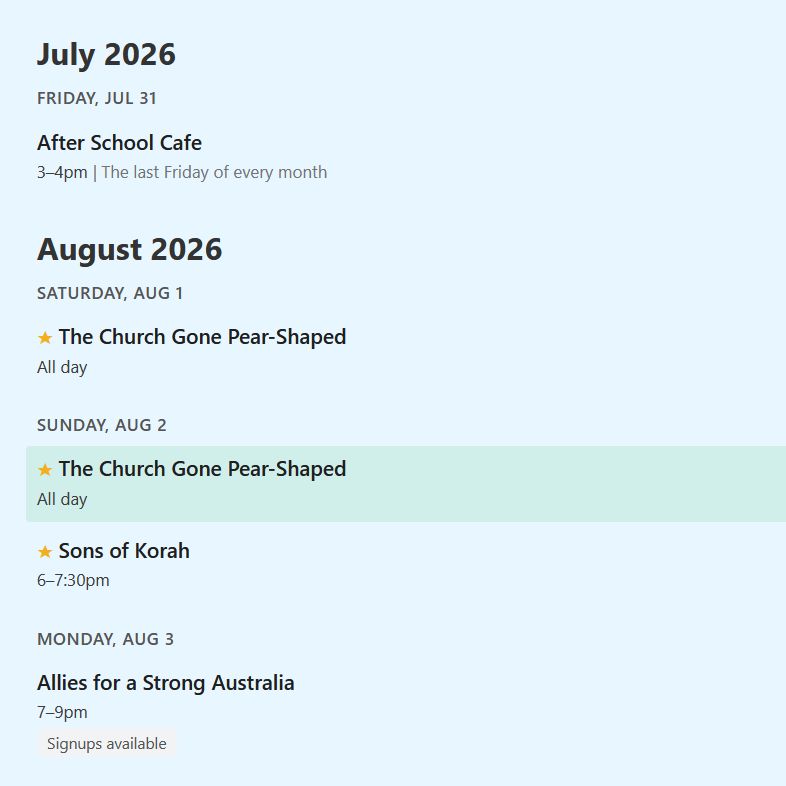
The List view is the newest addition to PCO Embed’s event display options. It presents your upcoming events in a clean, chronological agenda format — grouped first by month, then by date, with each event showing its name, time range, location, and recurring schedule description where applicable.
The structure is clear and scannable: a bold month heading (e.g. “August 2026”) introduces each month’s events, under which each date appears as a day header (e.g. “SATURDAY, AUG 1”) followed by the events for that day. Featured events are highlighted with a star. Events with signups available display a “Signups available” indicator. If an event has a physical location, a pin icon and the address appear beneath the time. Time ranges are formatted cleanly — “3–4pm” rather than “3:00pm–4:00pm” — and all-day events simply show “All day.”
The list loads the first 10 events and adds a “View More” button if there are additional events beyond that, so the page doesn’t become overwhelmingly long on first load.
What it’s best for:
- Homepages where you want a “What’s Coming Up” section that’s informative without being visually dominant
- Sidebars and secondary page areas where space is limited
- Churches with high event volume where visitors want to scan quickly by date rather than browse visually
- Pages where you’re combining the event list with other content — the List view sits cleanly alongside text, images, or other page elements without competing for attention
What to keep in mind:
The List view is deliberately information-focused rather than image-led. It suits visitors who know what they’re looking for and want to find it quickly. If you want to showcase event artwork or give events more visual impact, the Gallery view is the better choice. But for clarity, scannability, and compact footprint, the List view is the most versatile of the three options.
Choosing the right view for your context
These three views aren’t mutually exclusive — many churches use more than one on different pages of their site. A common setup:
- Homepage — List view showing the next 5–7 upcoming events, compact and always current
- Events page — Gallery view for visual browsing of everything coming up
- Calendar page — Monthly Calendar for the full picture of church activity
Because each embed uses the same one-line setup, adding multiple views to your site is as simple as creating a new embed in your PCO Embed dashboard and pasting it onto the relevant page:
<script src="https://pcoembed.com/go/js/embed.js" data-type="events" data-id="YOUR-UNIQUE-ID"></script>All three views pull live from your Planning Center calendar — so whichever combination you choose, everything stays current automatically the moment your team updates PCO.
The bottom line
A great events display isn’t just about showing information — it’s about showing the right information, in the right format, in the right place on your site. PCO Embed’s three event views give you the flexibility to do exactly that, without needing three different tools or three different maintenance workflows.
Everything flows from Planning Center. You manage one system, and your website reflects it.
Ready to try all three? Start your free 30-day trial at pcoembed.com — no credit card required.